Control Tower
Control Tower is a Management screen in Padas UI, the console: operators watch active pipelines, inspect live topology, and drive workload lifecycle (Start, Stop, Restart) on the selected Core. Each Core row identifies a registered Motion Engine (console: Cores; tree: core/). The page is built for operational visibility during steady state and incidents—execution graphs, stage health, and throughput overlays summarize what the engine is doing now, not what configuration files describe in the abstract.
The console is the control plane (orchestrates and visualizes). The Motion Engine executes pipelines and returns runtime state and metrics. Control Tower is orchestration and runtime diagnostics for one Core—not the whole console.
Runtime scope
| Rule | Detail |
|---|---|
| One Core | Every card, metric, and action is scoped to the selected Core instance. |
| No cross-Core view | There is no aggregation across Cores on this page. |
| Action blast radius | Start, Stop, Restart, and related controls affect only the bound Core’s workloads. |
| State variance | Runtime state can differ between Cores; compare Cores by switching the selector, not from a combined dashboard here. |
Selecting a Core
Use the Core selector to bind the workspace to one management endpoint (Host / Port as registered). Changing Core reloads runtime-backed content for that engine. Reachability is reflected by whether the console can load live topology and metrics for that selection.
Pipeline graph
Pipelines render as execution graphs: sources, streams, tasks, and sinks appear as ordered runtime stages along the event flow. Visual indicators show activity and health so operators can spot inactive, stopped, or failed stages without opening registry editors.
Streams are first-class nodes—they show how data moves on the selected engine and may offer inspect or sample affordances where the product exposes them. Durable stream tuning remains under Streams.
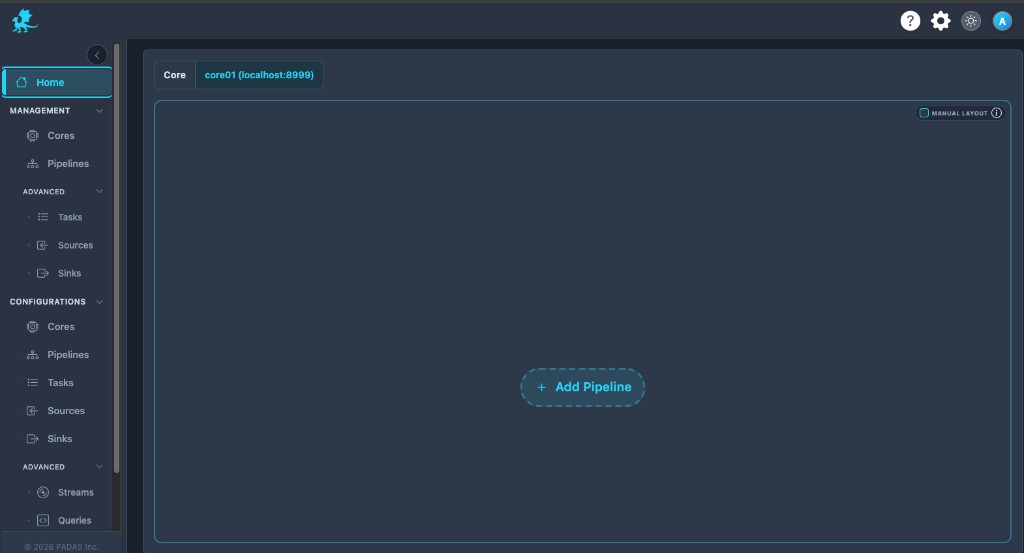
An empty graph means no pipelines are currently attached to the selected Core—it does not by itself prove a registration fault. Engine connectivity may still be healthy. Use + Add Pipeline to attach workloads (exact prerequisites follow your build).
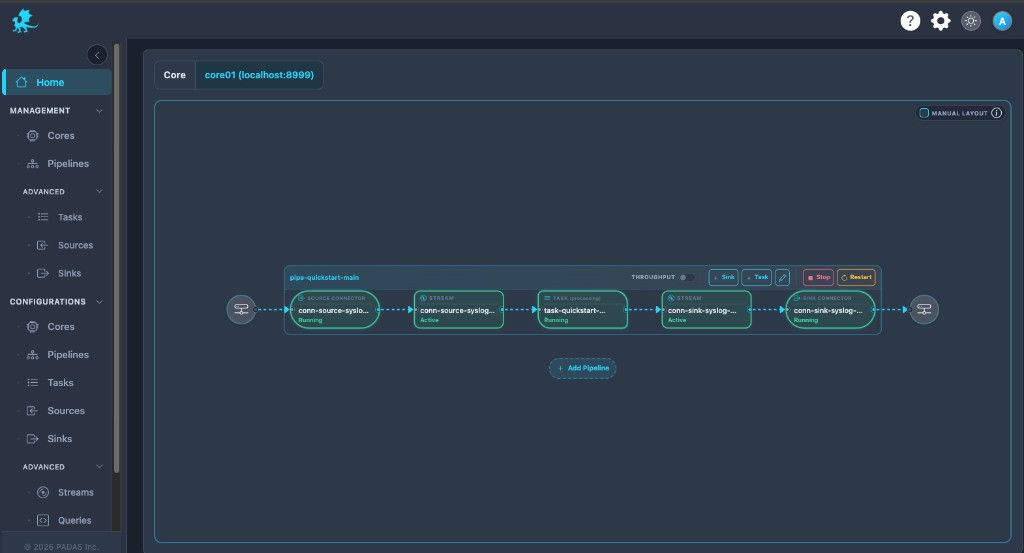
Layout — Dragging or rearranging nodes is visual only unless the product offers an explicit save path; moving nodes does not change runtime topology or registry definitions.
Runtime controls
Toolbar and card actions implement runtime lifecycle operations on the pipeline attached to the selected Core:
| Control | Role |
|---|---|
| Start / Stop / Restart | Change pipeline execution state on that Core. |
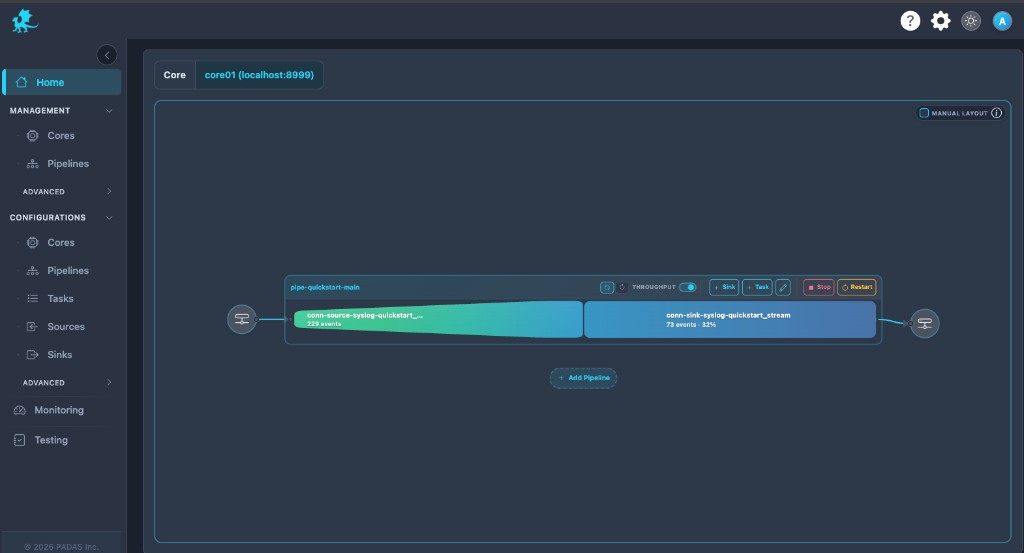
| Throughput | Toggles throughput overlays (rates / volumes on edges) for runtime diagnostics without replacing topology. |
| Edit | Opens editing in a runtime- or deployment-scoped context per product rules. |
| + Task / + Sink | Structural changes on the card when permitted for your role and build. |
Confirm dialogs and API behavior follow your release notes; live responses from the engine are authoritative. Some structural actions may be disabled or limited by deployment permissions.
Throughput and visibility
Enable Throughput to overlay operational metrics on the same execution graph. Use it to:
- Compare ingress vs egress balance across stages.
- Spot stalled or overloaded segments when rates flatten or diverge.
- Trace processing flow visually before diving into logs or APM.
Turn overlays off when numbers obscure structural triage during fast-moving incidents.
Health and troubleshooting
Graph-level triage and escalation to engine logs / metrics are summarized under Troubleshooting & Logs → Control Tower.
Runtime vs configuration
| Layer | What it represents |
|---|---|
| Configuration (registry) | Desired topology—sources, tasks, streams, sinks, and pipeline definitions you author under Configuration in the console. |
| Management | Registry sync—entity Deploy / Sync / Remove (Tasks, Sources, Sinks, Pipelines, Cores), needs deploy from fingerprint drift. |
| Control Tower | Live execution graph and Home pipeline membership—what is attached, running, stopped, or erroring right now on the selected Core (runtime visibility, not registry editing). |
Home pipeline membership (no Remove on Home):
| Control | Effect |
|---|---|
| Apply Pipeline | Create the pipeline entity (composition from the flow group) + silent bind membership. Submit label Create. Does not Deploy or Start—constituents are pushed via Add-entity packages, entity Deploy, or later Start when needed. |
| Link Pipeline | Silent bind only for an existing pipeline—restore membership. No create, Deploy, or Start in this control. |
Runtime state may temporarily diverge from registry intent (for example during sync/deploy, restarts, or partial failures). Resolve fingerprint drift on Management and Configuration pages; use Control Tower to observe and drive runtime lifecycle on the running system.
Runtime actions apply only to the selected Core instance. They do not replace Sync or Deploy—fix needs deploy from Management when symptoms point to stale topology.
Related pages
- Management → Cores — Deploy / Sync / Remove, Core needs deploy
- Management → Pipelines — pipeline Deploy / Sync / Remove, row Status
- Pipelines — registry topology definitions
- Cores — engine registration
- Streams — stream parameters