Tasks
Tasks (/tasks) stores task definitions in the registry. Each task reads a source stream, runs processing or detection logic, and writes to one or more sink streams.
A definition does not process live traffic by itself. It runs only when a pipeline references the task and Management → Pipelines assigns and deploys that pipeline to a Core. Background concepts: Core concepts — Tasks.
What is a task?
| Aspect | Description |
|---|---|
| Input | One source stream (events enter the task from this stream). |
| Logic | Processing mode: one inline PDL pipeline per event. Detection mode: one or more saved queries / rules, evaluated independently. |
| Output | One or more sink streams (task results are published here). |
| Placement | Task ids appear in pipeline task_ids in definition order (Pipelines). |
| Runtime | The engine starts and schedules the task after deployment; activation details depend on your build and Management flows. |
Processing vs detection
| Mode | When to use | Query source |
|---|---|---|
| Processing | Parse, filter, enrich, route, aggregate—typical streaming transforms. | Inline PDL in the task form (PDL Query). One program per task; the UI submits it as a single entry in the task’s query list. |
| Detection | Multiple independent conditions (rules, signatures, policy packs). | Saved queries from Queries. Select one or more, reorder with arrows. Each rule is evaluated separately; match semantics follow detection mode (Detection mode). |
Choosing a mode: use processing when a single ordered PDL string is enough. Use detection when you need several named saved queries maintained under Queries.
Tasks list
Open Tasks. Use Create for a new definition; Actions include view, edit, clone, and delete. Filters sit under column headers; the footer shows counts and paging.
Create → Create a task.
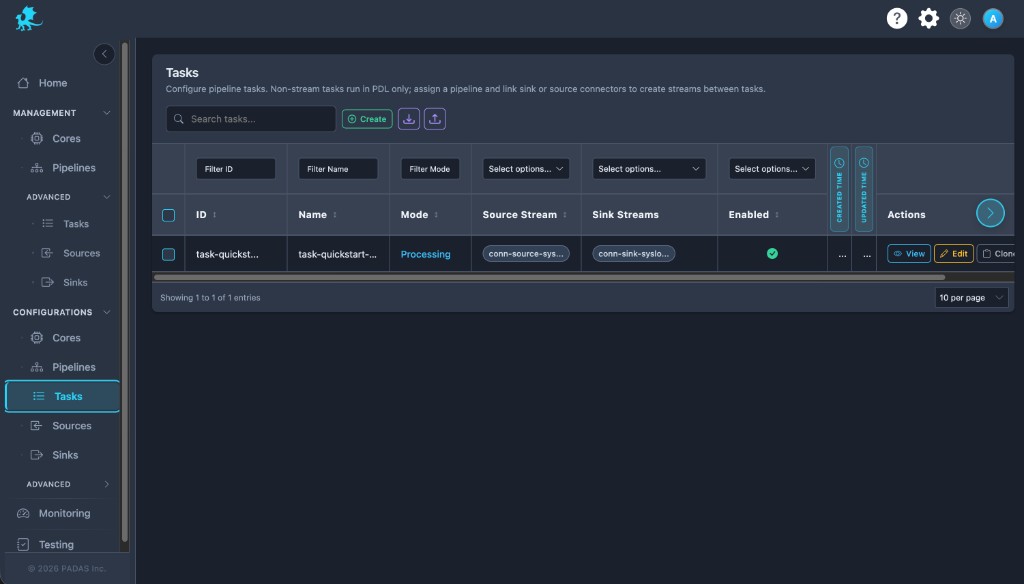
On these Configurations screens the layout is the same: Search and Create in the toolbar, Download / Upload for registry JSON (a full bundle can be imported from any tab), then a grid with filters on the row under the headers.
Each row has View (read-only), Edit, Clone, and Delete. Select multiple rows when you need bulk delete. Created and Updated time may show as narrow strips; use the control at the side of the table to expand or collapse those columns.
| Column | Description |
|---|---|
| ID | Stable task id in the registry and API. |
| Name | Human-readable task name. |
| Mode | processing or detection. |
| Source Stream | Stream the task reads from. |
| Sink Streams | Streams the task writes to (one or more). |
| Enabled | Whether the task may run when the engine schedules it. |
| Created Time / Updated Time | Audit timestamps. |
| Actions | View, Edit, Clone, Delete. |
Create a task
- Choose a unique Task Name and optional Description.
- Select Mode — processing or detection (cannot change later; see Editing constraints).
- Select the Source Stream and one or more Sink Streams (must align with connector wiring; see Streams).
- Processing: enter the PDL Query inline. Detection: pick saved Queries and order them.
- Set Enabled as needed; expand Advanced Settings only if your deployment exposes runtime tuning (workers, buffering, batching, aggregation-related options).
- Save the task definition.
- Add this task to a pipeline in the desired order, then assign and deploy under Management → Pipelines.
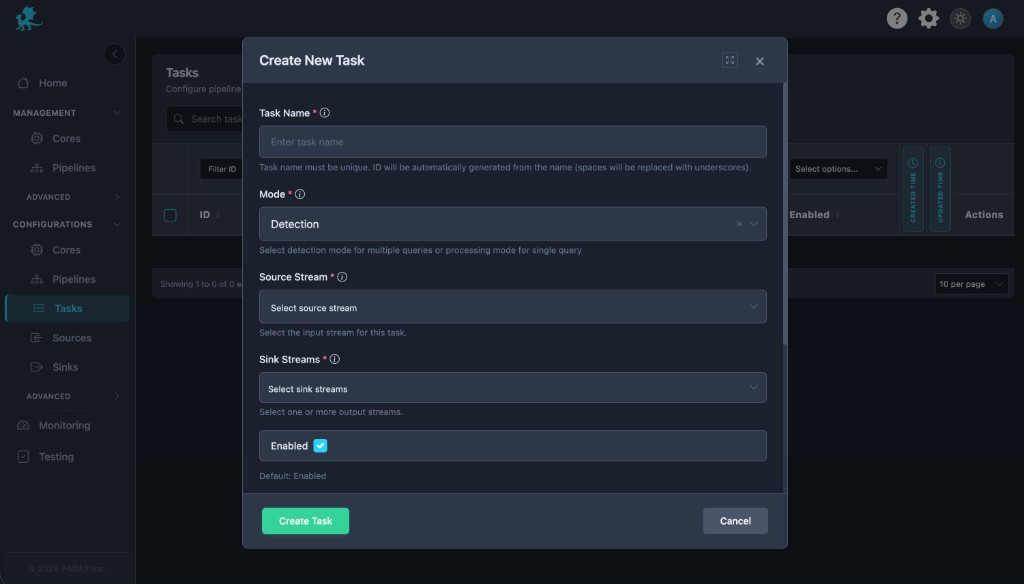
Detection mode
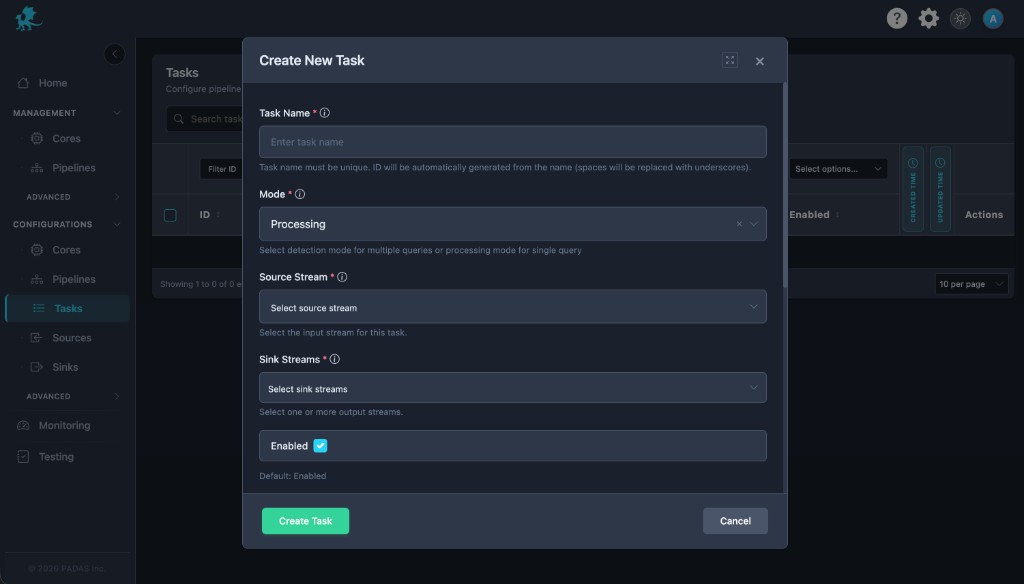
Processing mode
Form fields
| Field | Meaning |
|---|---|
| Task Name | Required display label; registry id is derived from the name. Must be unique among tasks. |
| Mode | processing or detection; drives which query UI you see. |
| Source Stream | Required input stream id. |
| Sink Streams | Required one or more output stream ids. |
| Enabled | Boolean; default allows scheduling when the pipeline is active. |
| Queries (detection) | One or more saved query ids, ordered; at least one required. |
| PDL Query (processing) | Single inline PDL string; required in processing mode. |
| Description | Optional operator notes. |
| Advanced Settings | When shown, controls runtime-oriented options (for example workers, buffering, batching, aggregation-related knobs exposed by your build). These affect execution after deployment—keep defaults unless you are tuning performance or capacity. Values are stored in task runtime configuration (for example task.config on the Core side). |
A full task shape—including optional advanced blocks—appears in the sample registry: padas-registry-quickstart.json.
Required configuration
| Item | Requirement |
|---|---|
| Name | Required; unique in the registry. |
| Mode | Required: processing or detection. |
| Source stream | Required; must reference an existing stream id. |
| Sink streams | Required; at least one sink stream id. |
| Queries / PDL | Detection: at least one saved query. Processing: exactly one inline PDL definition. |
Streams must match how source and sink connectors are wired for the pipelines that will use this task (Streams, Sources, Sinks).
Runtime and pipeline relationship
- A task definition is configuration only; it is not live execution.
- The task must be listed in a pipeline’s ordered
task_idsso the engine knows where it sits in the workflow (Pipelines). - That pipeline must be assigned to a Core and deployed from Management → Pipelines before runtime processes the path.
- Depending on version and topology, additional steps under Management → Advanced may be required for component lifecycle—follow your deployment guide.
- Source and sink stream ids must stay consistent with connector and stream topology or events will not flow as expected.
Editing constraints
Note: After create, the UI treats Task Name, Mode, Source Stream, and Sink Streams as read-only on Edit. To change them, clone the task or recreate it, then update pipelines to reference the new id.
Do not delete a task that is still referenced by an active or deployable pipeline. Remove the task from every pipeline’s task_ids (or delete unused pipelines) first.
Related pages
- Advanced → Queries — saved queries for detection tasks
- Streams — stream ids for sources and sinks
- Pipelines — pipeline reference and task order
- Management → Pipelines — assignment and deployment
- PDL Quick Reference