Run a sample pipeline
Padas UI, the console, and the Motion Engine (console: Cores; tree: core/) are already running from Install Padas Motion. This page registers the engine in the console, imports a sample registry, deploys source → task → sink, and checks traffic on a loopback TCP helper.
Here's a sample Python script to act as both source and sink for demo purposes: padas_tcp_quickstart_server.py is one process: it sends synthetic syslog-style lines to the engine source listener (8080) and accepts the sink connector’s outbound TCP session (8081). Keep it running through import, assign, and validation. Until the pipeline is running, expect retry noise.
You need python3 on the engine host. Ports 8080 and 8081 are for this helper only.
1. Sign in
Open https://<host>:9000. Sign in with the administrator created at install.
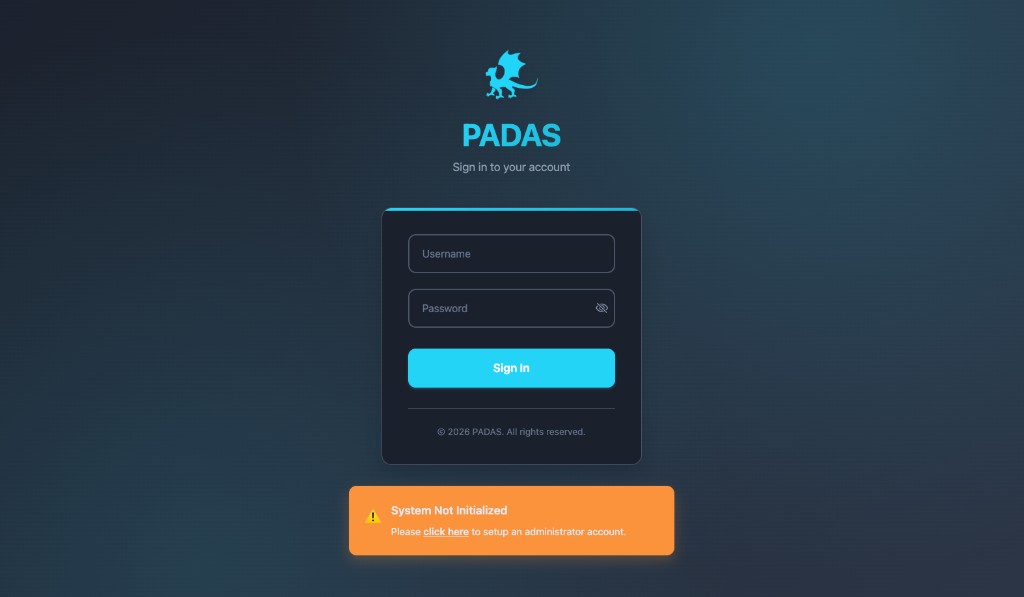
If you skipped first-boot setup, the sign-in page shows System Not Initialized. Use the banner to create the administrator. Bootstrap and roles: Users, roles & permissions.
2. Register the Motion Engine
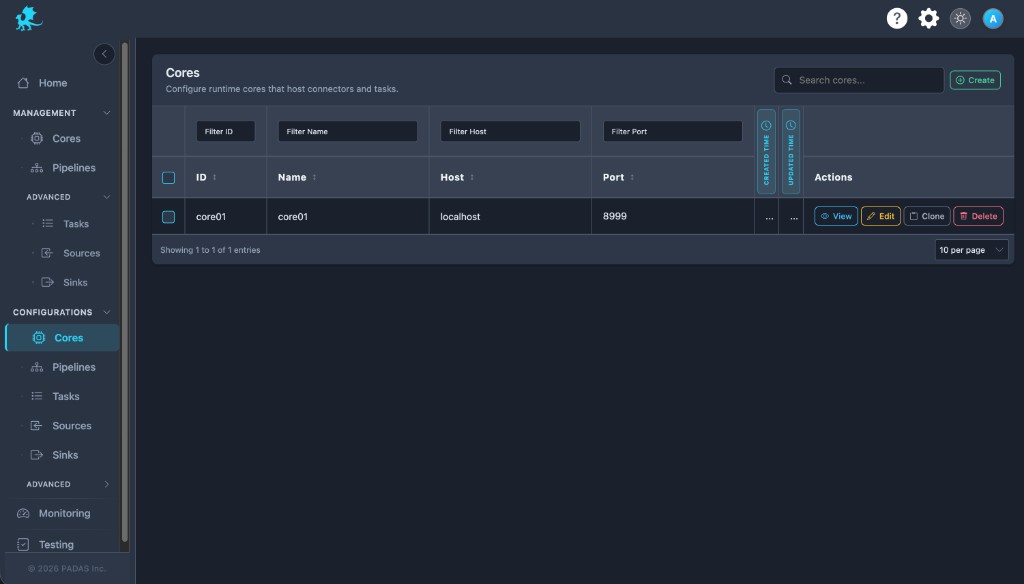
Enrollment is already done. Open Configurations → Cores, then Create. Enter name, host, and port only—the console uses enroll credentials to reach the engine.
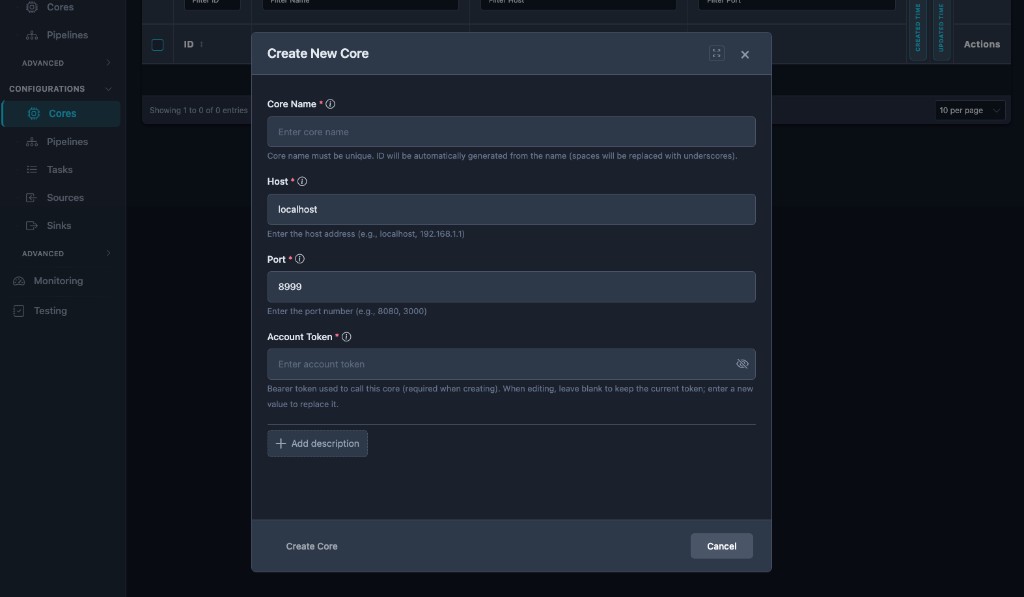
| Field | Value |
|---|---|
| Core Name | Unique, human-readable label for this Motion Engine. |
| Host | Address the console can reach (often localhost or 127.0.0.1 on a single-node host). |
| Port | 8999. |
| Description | Optional. |
Naming patterns: Naming conventions.
3. Start the TCP helper
Run this on the engine host so 127.0.0.1:8081 matches the sample sink. Copy:
- Registry:
padas-registry-quickstart.json - Helper:
padas_tcp_quickstart_server.py
python3 padas_tcp_quickstart_server.py
Startup banner:
Padas TCP quickstart helper

Padas source connector (syslog TCP) should listen on:
  Host: 0.0.0.0 (or reachable bind)  Port: 8080

This script sends synthetic lines to:
  127.0.0.1:8080

Padas sink connector should connect to:
  address 127.0.0.1  port 8081  (engine process → loopback)

This script listens for sink TCP on:
  0.0.0.0:8081
If the engine is on another host, set PADAS_TCP_SOURCE_HOST and make 8081 reachable from the engine (or change connector endpoints after import). Optional: PADAS_TCP_SOURCE_PORT, PADAS_TCP_SINK_BIND, PADAS_TCP_SINK_PORT, PADAS_QUICKSTART_EVENT_INTERVAL_SEC (script header).
4. Import the registry
Open Pipelines, Upload, and select padas-registry-quickstart.json.

5. Assign and deploy
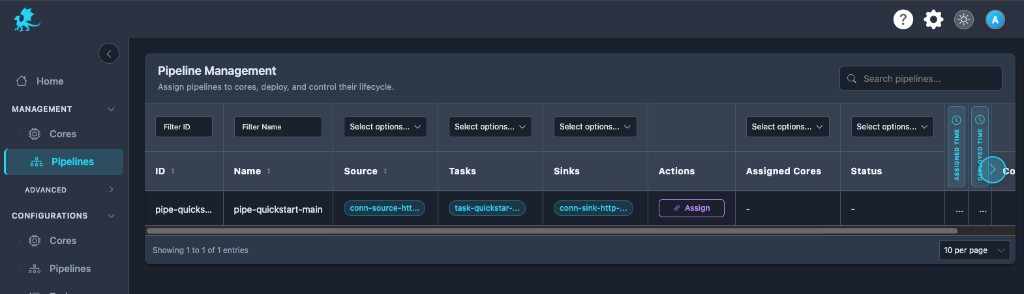
Open Management → Pipelines, select the imported pipeline, Assign, choose your Core (the registered Motion Engine), and confirm Assign and Deploy.
6. Validate
On Home, confirm pipe-quickstart-main shows source → task → sink in a healthy state.
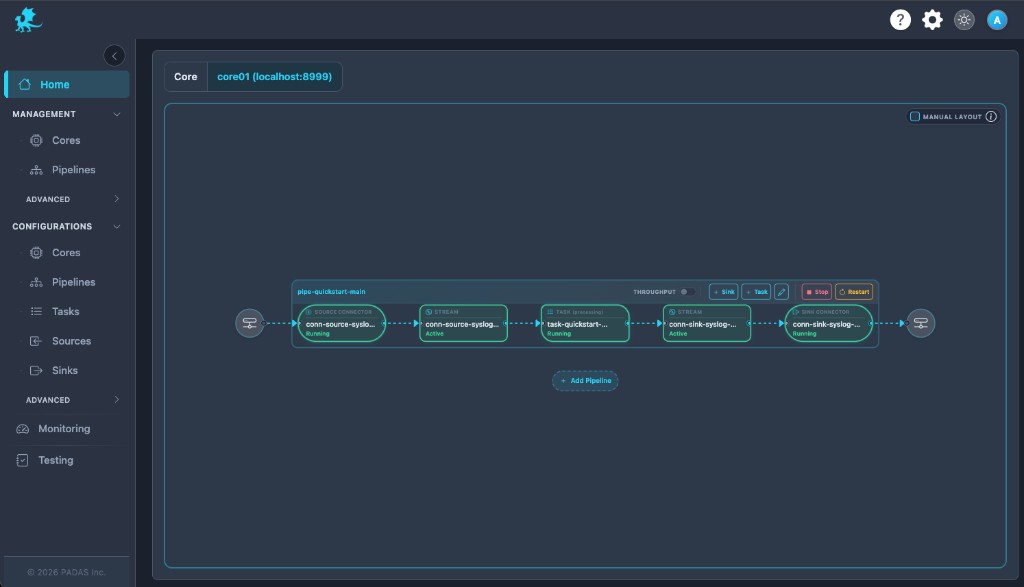
pipe-quickstart-main with source → stream → task → stream → sink healthy.In the helper terminal, look for [SINK] lines. The sample task filters aggressively; [SOURCE] without [SINK] can mean waiting for a matching login-style event.
[SINK] <14>May 11 07:46:29 - -: {"action":"login","custom_field":"Yey, this is my first task!",...}
Troubleshooting
Troubleshooting & Logs → Run a sample pipeline